Dashboards
Composing personal boards with device widgets and an alarms tracker.
Dashboards
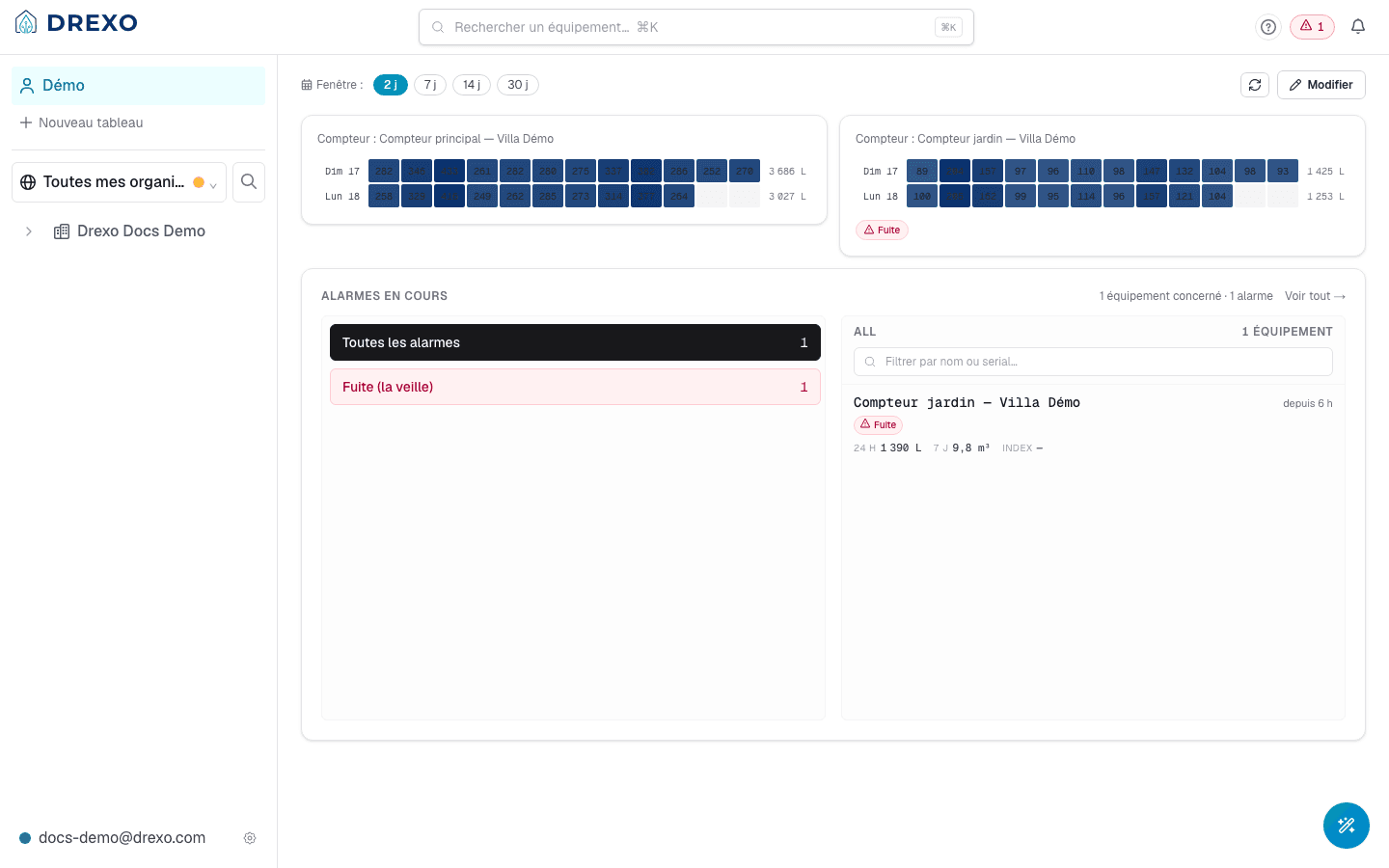
A dashboard is a composable view of multiple devices on a single page. You can create as many as you want (one per site, one per customer, one per use case) and pin the widgets that matter.
Drexo has two dashboard families:
- Personal: strictly yours. Listed at the top of the left rail.
- Organisation: attached to an organisation's navigation tree. Visible to every member of the owning organisation.
This page covers personal dashboards.
Create a dashboard
In the left rail, under your dashboards list, click + New board. Give it a name (editable later), optionally pick an icon, and confirm.
The new dashboard opens empty, ready to be populated.
Add devices
- On a device page, click Pin to a dashboard and pick the target dashboard.
- Or, from the dashboard view itself, click the + tile at the bottom of the grid to open a device search.
Every device widget shows:
- Its contextual name (organisation alias > internal name).
- Its recent consumption over an adjustable time window.
- Active alarms if any.
- A link to the full page.
Reorder, rename, delete
Toggle Edit mode via the Edit button (or by adding
?edit=1 to the URL, shareable). In edit mode:
- Drag-and-drop each widget to reposition it.
- × Remove a widget: surfaces a 10-second undo banner.
- Rename the dashboard from the toolbar.
- Delete the dashboard entirely (irreversible: Drexo asks for confirmation).
The ?edit=1 URL is shareable, which makes it collaborative in
this sense: two people can edit the same dashboard simultaneously,
the last writer wins (writes are per-widget, not per-dashboard, so
two people reordering different widgets don't clobber each other).
The "Alarms" widget
A special widget (the list of active alarms across all your accessible devices) can be pinned to any of your dashboards.
- Go to the Alarms page.
- At the top, the Pin widget on selector lists your dashboards. Tick those that should display it.
The widget reflects the same list everywhere: it's the pin that's multi-dashboard, not the alarm state itself.
Time range
Each device widget can show 1, 7, 30, or 60 days of history. The default is 7 days.
- Per-widget: a selector on the widget itself overrides the default for that tile only.
- Per-dashboard: no global setting (yet). Every widget starts at 7 days unless individually overridden.
Going further
- Device page: where you pin from.
- Alarms: where you pin the alarms widget from.
- Sharing: a shared device can be pinned to a personal dashboard exactly like a device from your own organisation.