

Sharing
Share devices or zones across organisations, and manage received shares.
Sharing
Drexo is a multi-tenant platform. Each organisation owns its own devices, but can grant read (or edit) access to external recipients — another customer, a contractor, a neighbour, an auditor. This page covers the three sharing modes and how to manage what you see or what you give others access to.
The page slug stays
/partagesin both locales so the language switcher round-trips cleanly. The content here is the English source of truth.
Three sharing modes
1. Personal share (to a person)
You share a device or a zone with a specific email address.
- If the recipient already has a Drexo account, the share shows up immediately in their Shared with me.
- If they don't have an account yet, Drexo creates a pending invitation; the share materialises as soon as they finish signing up.
- The role (
vieweroreditor) and the expiry (any duration, or unlimited) are set at share time and editable later without revoking.
2. Share to an organisation
You share to a third-party organisation whose ID you know. Every member of that organisation gains access, capped at the role granted.
Variant: extensible share. You grant a personal share to a person and check "can be extended to their organisation". The recipient then picks the zone and target organisation in their own interface — you don't need to know your partner's internal structure.
3. Public link
You generate a shareable URL to send via email, QR code, chat. The recipient doesn't need a Drexo account. Options:
- Optional password.
- Configurable expiry (default 7 days).
- Revocation at any time from the device page.
Public links are read-only: pinning, renaming, or configuring dashboards is impossible from a public link.
Granting a share
On a device page or a zone page, if you own the organisation, a Share button appears in the header. The label includes the count of existing shares: Share (3).
Click it: a panel opens listing every existing share. For each:
- Edit — changes the role or expiry without revoking (access
is uninterrupted,
granted_atis preserved). - Revoke — removes the access immediately.
The primary CTA + New share launches the wizard:
- Pick the mode (personal / organisation / public link).
- Enter the recipient (email, organisation ID, or nothing for a public link).
- Choose the role and the expiry.
- For a personal share: optionally tick "can be extended to their organisation".
- Confirm.
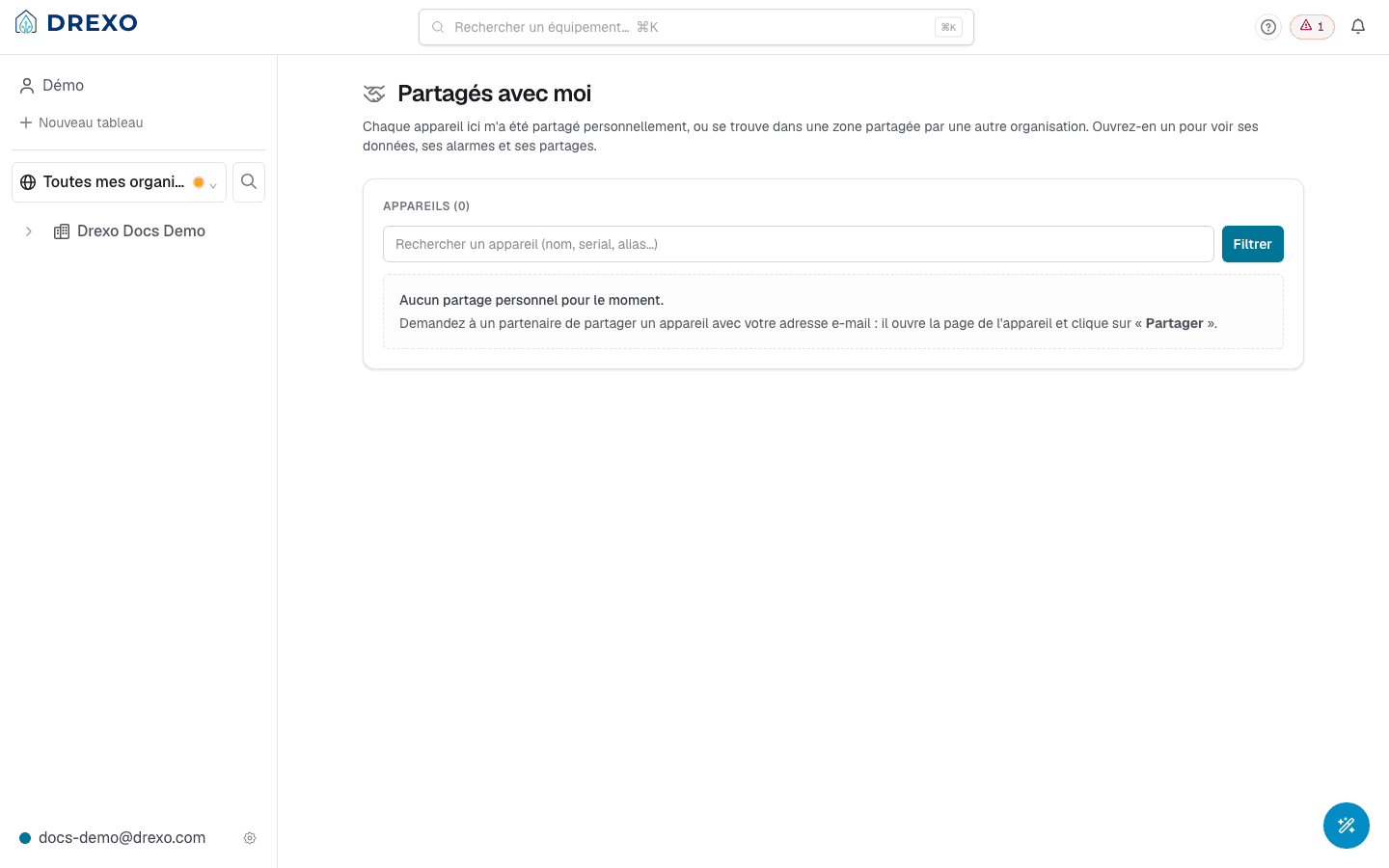
Receiving a share ("Shared with me")
/partages lists every device you have access to via a share
(not by membership in an organisation). Each row shows:
- The name of the device (with its contextual alias if your organisation gave it one).
- The access paths as chips: 👤 personal, 🏢 Org X. Several paths can reach the same device; the strongest role wins.
- The placement in your tree if the share is already placed
(e.g.
Chaq → Test). - A NEW badge (per device) until you've opened the page since the last notification.
Devices coming from multiple source organisations are grouped under a per-source header to stay legible at 50+ rows.
Placing a share
When a share is marked "extensible" by its granter, the recipient sees a Place in a zone button on the row.
- Click Place.
- Pick a zone in your organisation (instant search across all your zones).
- Confirm.
Effect:
- The device becomes visible to every member of your organisation, in the chosen zone.
- If the granter revokes the personal share, the organisation share is automatically revoked too (cascade).
Leaving a share
On a shared device's page, at the bottom, a Leave share button removes your personal access. The organisation share (if you placed one) survives until the granter revokes it explicitly.
History and audit
Each organisation's Settings → Sharing page lists:
- Shares granted by your organisation.
- Full history (revoked, expired, modified shares).
- Active public links with their open count.