

Device page
How to read a device's detail page — index, consumption, alarms and history.
Device page
Every device supervised by Drexo has its own detail page at
/devices/<id>. The page adapts automatically to the device
type — an Itron water meter doesn't show the same blocks as a
pool sensor or a connected TV.
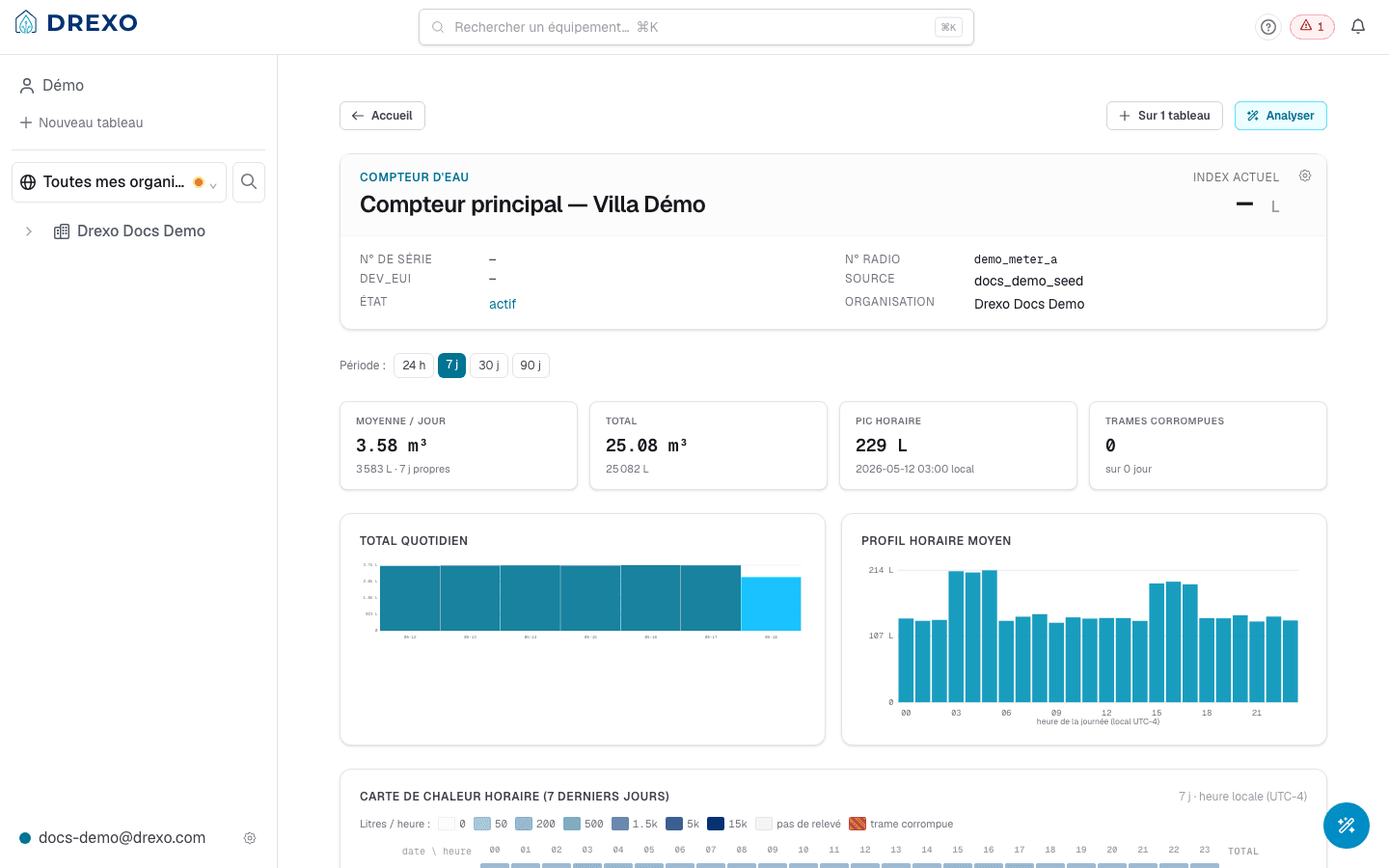
This guide covers the water meter page (type: water_meter),
the most common type today.
How to reach it
Three paths to the page:
- From the left rail — expand your organisation, then a zone, then click the meter's name.
- From Shared with me — click the card or the device name.
- From a dashboard — click any device widget to land on its full page.
The URL accepts a time-window parameter:
?range=1— last 24 h?range=7— last 7 days (default)?range=30— last 30 days?range=90— last 90 days
What the page shows
1. Header
- Device serial number + internal name.
- A decoder badge naming the meter family (e.g. Itron Intelis wSource).
- Alarm chips for every currently-raised alarm.
- Three actions on the right:
- Pin / Unpin from a personal dashboard.
- Rename for my organisation — alias shared by every member of your organisation.
- Rename for me — strictly personal alias, invisible to other users.
2. Stats strip
Four key figures across the chosen time window:
- Average per day — total consumption ÷ number of days.
- Total over the window.
- Hourly peak — the biggest single-hour consumption observed.
- Corrupt frames — count of frames received but undecodable. A healthy meter stays at zero; a rising value signals a reception or hardware issue.
3. Side-by-side charts
- Daily total — bars; one day = one bar. Quick read of high / low days.
- Hour-of-day profile — average per 0–23 h slot. Surfaces habits (morning peak, night trough, continuous 24/7 leak, etc.).
4. Hourly heatmap
A days × 24 hours grid where colour encodes the amount consumed per cell. Effective for:
- spotting a leak (non-black tint every night for hours);
- spotting a one-off anomaly (a dark cell isolated at 3 AM);
- seeing weekends and holidays at a glance.
5. Alarms
- Active alarms listed on top, with raised-at timestamps.
- History of resolved alarms below (last 100 by default).
See Alarms for the full list of alarm types and their severity.
6. Recent volume-index readings
Table of the raw readings the meter has reported, time-stamped. Useful for operators who need the exact value the device returned before any Drexo computation.
Ask the assistant
The Ask AI button at the top right opens the chat with the device's context pre-loaded. You can ask things like:
- "What's the average daily consumption over the last 7 days?"
- "Did any alarm fire last night?"
- "Does the hour-of-day profile suggest a leak?"
The assistant never makes up numbers — it calls the same data sources the page itself uses, and cites the public documentation when you ask about how the platform works.
Sharing the device
If you own the organisation the device belongs to, a Share button appears in the header. See Sharing for the options (personal, organisation, public link).
Otherwise, when you receive a share, you can:
- open the page to consult the data,
- optionally place the device in a zone of your own organisation (when the granter allows it),
- or leave the personal share (Leave share button at the bottom of the page), which revokes your access.