Getting started
Create an account, join an organisation, open a device.
Getting started
Drexo is invite-only. Here's the path from "I just got an email" to "I'm using the platform".
1. Receive an invitation
Ask your administrator to share at least one device or zone with you. You'll get an email with a sign-up link (check spam if nothing arrives within 5 minutes).
2. Pick a sign-in method
The link takes you to /login. Three options:
- Microsoft — for Office 365 work accounts.
- Google — for Gmail / Workspace accounts.
- Email — a magic link is sent to your address; one click signs you in, no password. A password option is available under the Use a password instead fold-out.
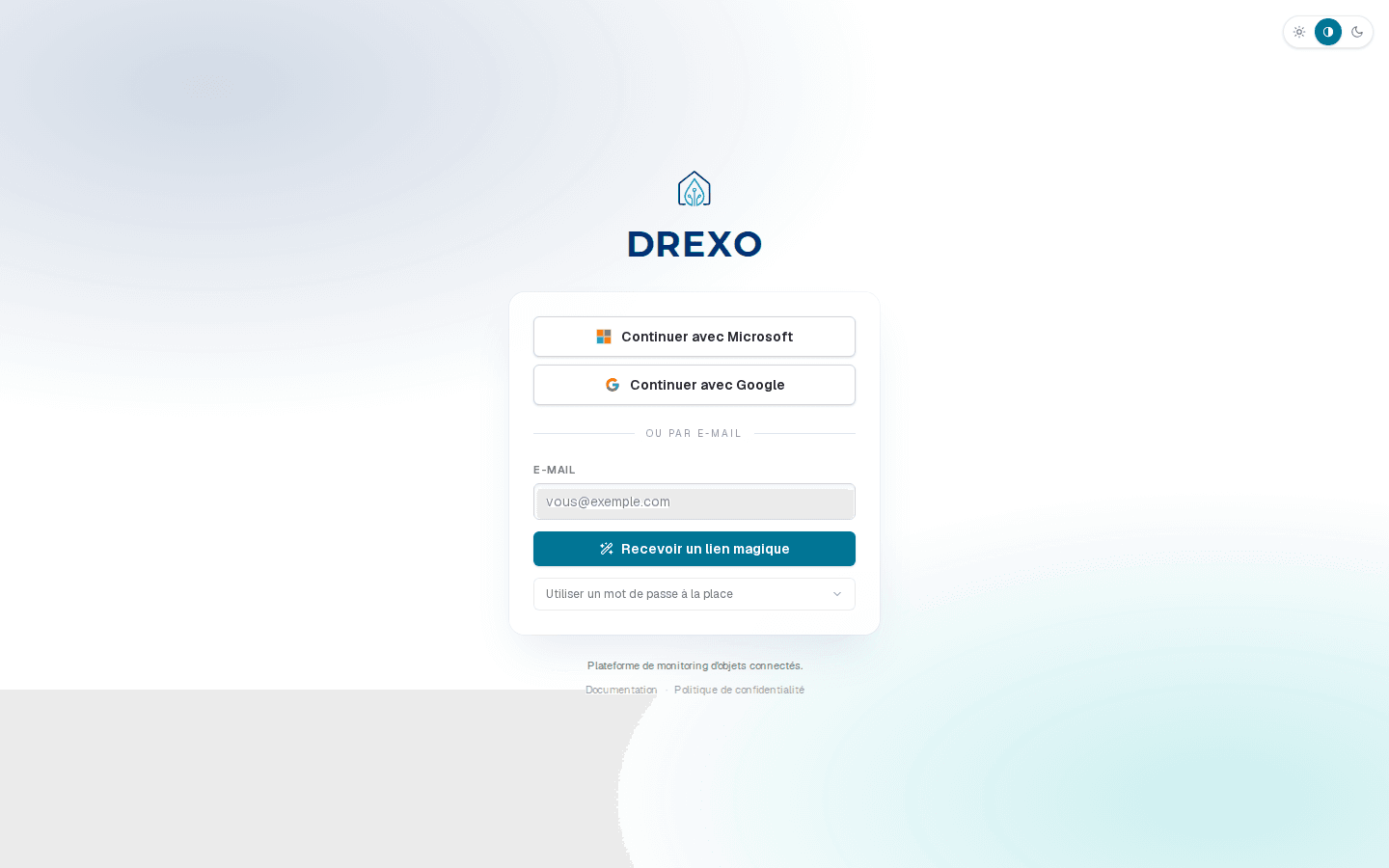
For SSO via Microsoft / Google, your address must match an existing Drexo invitation — self-service signup is not enabled.
3. Explore the interface
Once signed in, you land on the home page. Three main entry points:
- The left rail — your tree of organisations and zones. Click to expand; click a device to open its detail page.
- Shared with me — every device someone shared with you, grouped by source organisation.
- The
⚠ Nbadge in the top right — how many alarms are active across devices you can see.
4. Going further
Depending on what you want to do:
- Read a device's detail page — Device page.
- Share a meter with an external partner — Sharing.
- Build your own dashboard — Dashboards.
- Triage alarms — Alarms.
One last tip: the ? button in the top bar opens this documentation from anywhere in the app.